
TradeSuite ID: Affirming Trades
Authorized users can affirm designated trades. For trades to settle through the DTC, affirm the eligible confirms and submit the affirms by Settlement Date -1 at noon, Eastern Time.
You can only affirm trades that are in unaffirmed and authorized to affirm status. You can select one or more confirms to affirm; however, you cannot affirm allocations. You can also affirm a trade from the Confirm/Affirm Details page. For more information, see Confirm/Affirm Details Page in NearMatch - Overview
To affirm eligible trades:
-
From the major and minor, All, and Unmatched Confirms pages, select the check box for each confirm that you want to affirm.
To select all confirms on the page, click the master check box in the second column of the header. If you select the master check box on a page that contains allocations, the TradeSuite ID® service selects both the allocations and confirms. If you attempt to affirm an allocation, an error message displays.
-
Click Affirm.
TradeSuite ID verifies that the trades are eligible for affirmation and displays a message, similar to the next figure. The message indicates the number of confirms that you have selected and can affirm. The total quantity is comprised of the exact amounts of individual confirms selected for affirmation.
Affirmed Message in Microsoft Internet Explorer 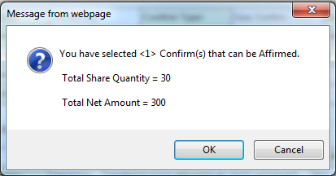
-
Click OK.
The Transaction Send Summary page displays the results, as illustrated below.
Transaction Send Summary Page 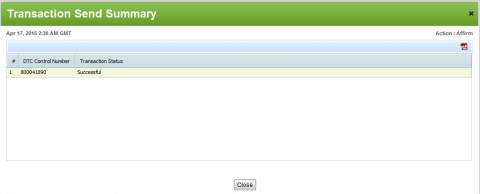
- Optionally, to download the transaction file to your computer, click the PDF icon
 .
. -
Click Close.
The trade status appears as Affirm (red, italic) for the corresponding confirm records. The status appears in the Requested Action column on the All data grid and the NearMatch minor or Unmatched Confirms data grid, as appropriate for the confirm's status. The status remains until those pages refresh.