DTCC Tokenization Service: Viewing, Managing, and Adding Service Accounts (API)
Service accounts are machine users created to implement API calls. Machine users are created through the Tokenization Service user interface. Instructions for API configuration are available in the Digital Assets API Reference Guide.
Additionally, use the Service Accounts tab to manage machine user credential rotation. To maintain security, compliance and service availability, rotate service account credentials regularly to help prevent disruptions and unauthorized access.
|
Important |
|
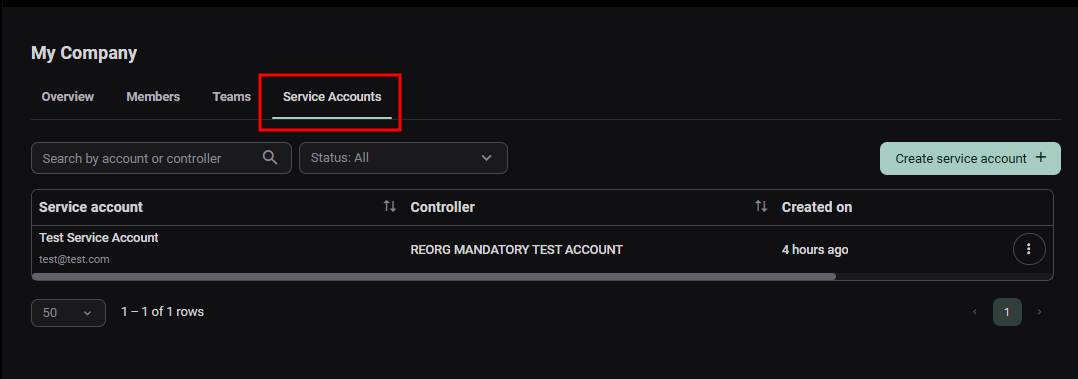
The Service Account tab provides a list of all active service accounts in your organization.
|
Create a New Service Account
To create a new service account, click Create Service Account in the upper-right of the Service Account tab.

|
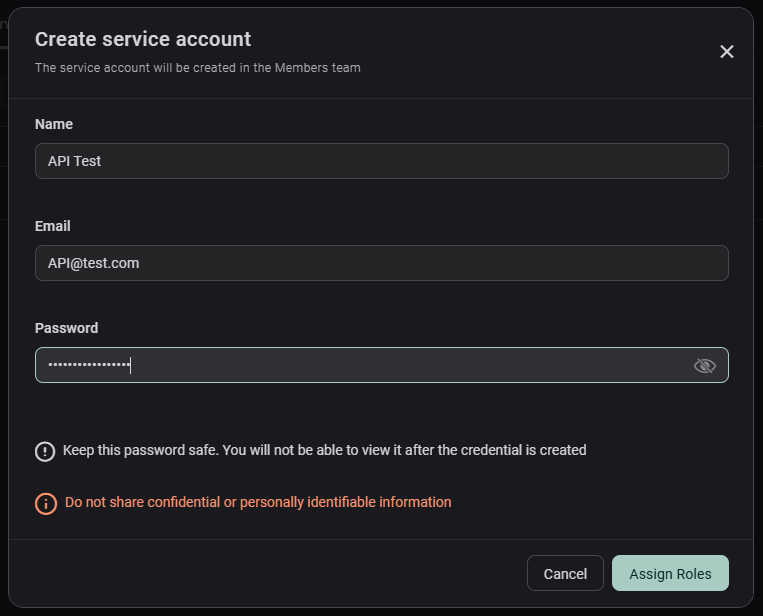
Complete the required fields: Name, Email, and Password. Then click Assign Roles.
Note: The service account name must be between 2 and 50 characters in length and may contain only letters and hyphens (-). No other special characters are permitted.
|
Important |
|
|
After clicking Assign Roles, follow the instructions in the Assigning Roles section. The same roles are available as when setting up a member.
Once complete, the machine user is automatically added to both the Service Accounts tab and the Members tab.
Follow the instructions on the Digital Assets API Reference Guide to make the required API calls.
|
Note |
|
Managing Service Accounts
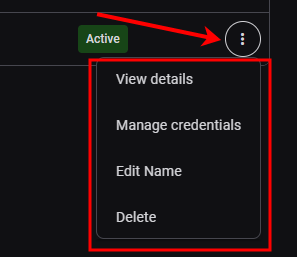
You can view, rename, delete, or manage credentials for machine users.
Click the vertical ellipses icon on the far right of the machine user you want to modify, remove, or view.
|
Credential Rotation
Service Account (client-app) secrets are used to authenticate your application when accessing protected APIs. For security and compliance purposes, Service Account secrets must be rotated regularly to maintain service availability and prevent disruptions.
To rotate your machine user credentials:
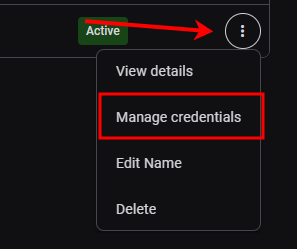
Click the vertical ellipses icon on the far right of the machine user whose credentials you want to rotate. Select Manage Credentials.
|
From the Credential Manager screen, click on Start Credential Rotation in the upper-right of the screen.

|
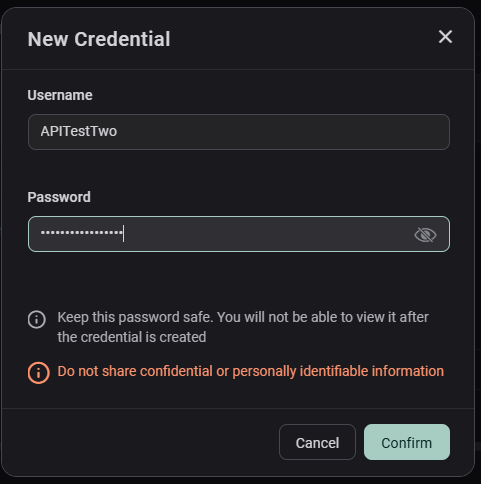
Enter the new username and password for the machine user's credentials. Select Confirm.
Important: both the username and password must be changed for successful rotation.
|
|
Note |
|
Credential rotation is recommended for security compliance, with service account credentials rotated at intervals based on risk level, overlapping credentials maintained during rotation to prevent service disruption, and immediate rotation required if credentials are exposed, compromised, or otherwise pose a security risk. Click See Best Practices to view credential rotation best practices.
|

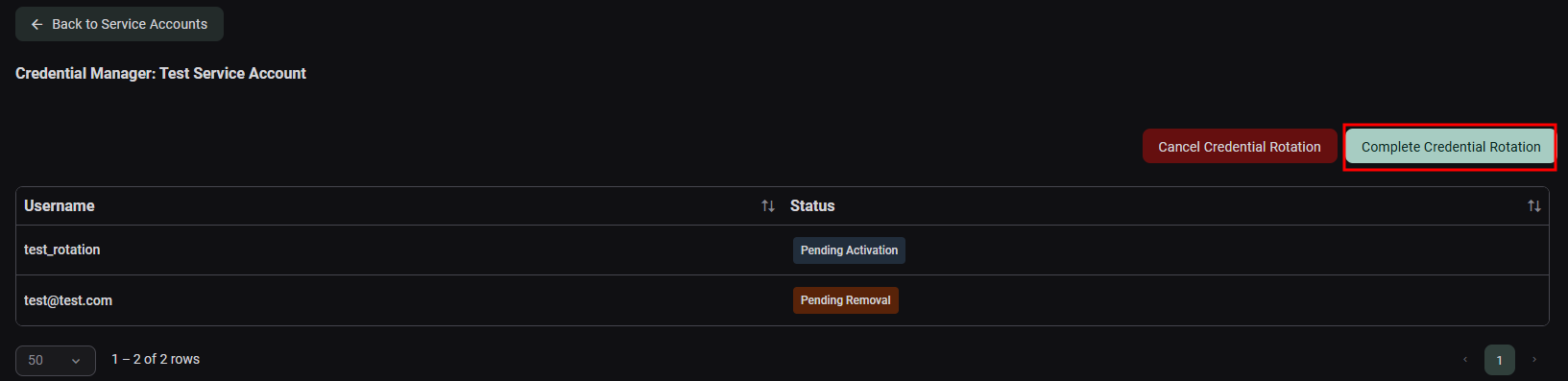
Once credential rotation is initiated, the new service account username appears with a status of Pending Activation, while the previous service account username appears with a status of Pending Removal. During this in-progress phase of the credential rotation process, both credentials (the existing and new credentials) remain valid.
|
Important |
| Prior to completing the credential rotation process, update all associated applications with the new service account credentials while both the old and new credentials remain valid. |
Click Complete Credential Rotation to finalize the credential rotation.
|
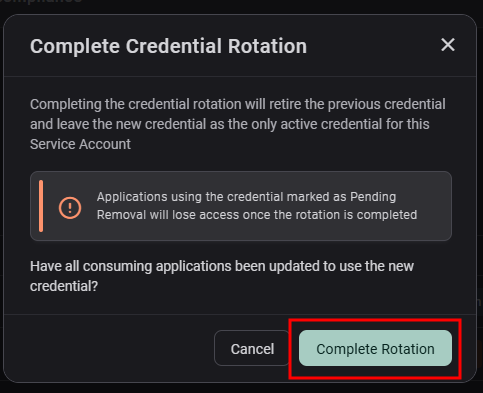
Click Complete Rotation to complete the credential rotation process. Important: Ensure that all associated applications have been updated with the new user credentials and password before completing the credential rotation process.
|
The service account will display the new username and can be accessed using the new password. The old credentials will no longer be valid.