DTCC Tokenization Service: Viewing, Adding, and Modifying Members
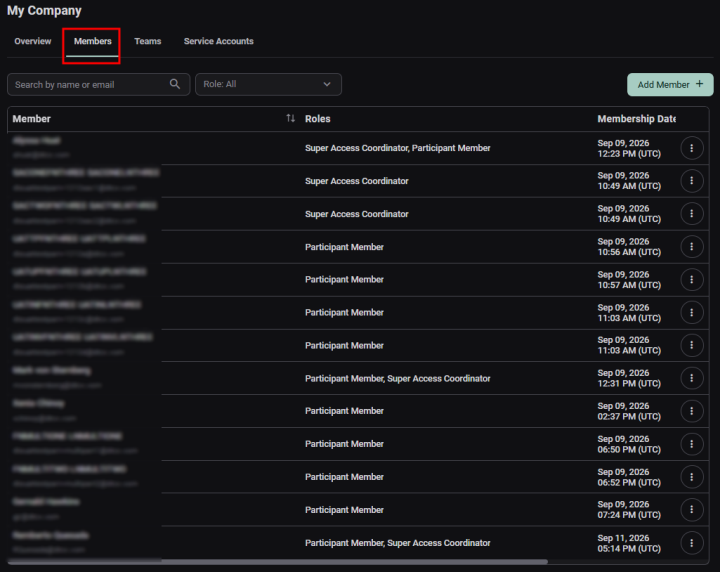
The Members tab provides a list of all members in your organization and their corresponding roles. View the Adding Members section for a summary of the Roles and their corresponding permissions.
|
Important |
|
|
Managing Members
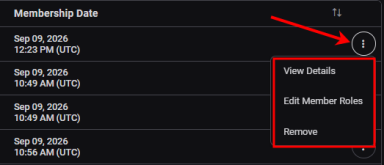
You can modify the roles of a member, remove a member, or view member details.
Click the vertical ellipses icon on the far right of the member row you want to modify, remove, or view.
|
Adding a Member
To add new members to your organization, click the Add Member button in the upper right of the Members tab.
|
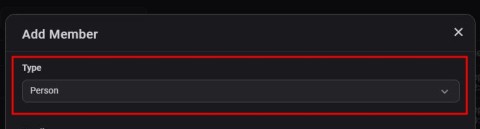
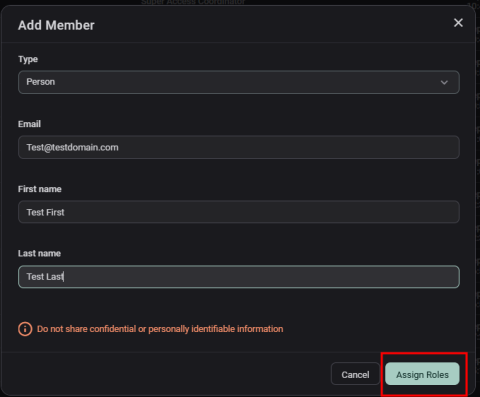
From the Add Member dialog box, select Person from the Type dropdown. Note: Select the Service Account type only when retrieving machine users for API calls. View the Service Account section for instructions on adding machine users.
|
Complete the required fields: Email, First Name, and Last Name. Click on Assign Roles.
|
Assigning Roles
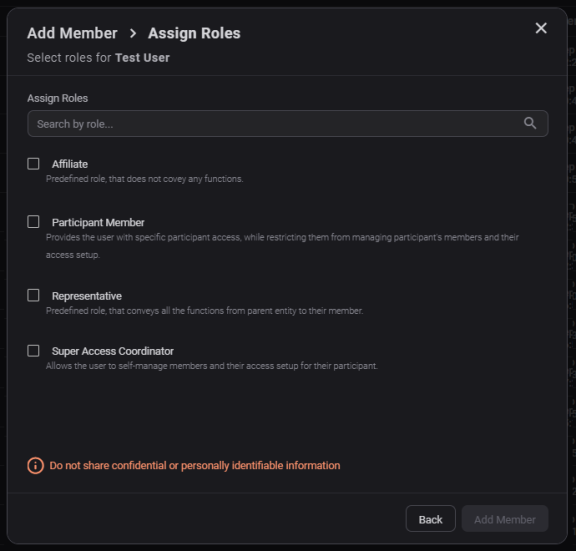
The following are the main roles and associated permissions you can assign to a new member. Note: You can assign multiple roles. If roles with different permissions are assigned, the sum of each role's functions will be assigned.
- Participant Member: Allows the member full access to all application functions, such as registering wallets or creating conversion orders. Participant Members can view the My Company screen; however, they cannot manage (add or edit) new members or teams.
- Super Access Coordinator (SAC)/Administrator: Allows the user to add members, create teams, and add machine users through the Service Accounts tab. SACs can also modify or remove members, teams, or machine users.
In addition to Participant Member and Super Access Coordinators/Administrators, the following predefined roles are available:
- Affiliate: Provides access to the application but does not provide access to any functions or screens other than the home screen. This role is designed for use cases where a user needs access to the application as a member but should be restricted from viewing data (including the My Company page) or performing any actions such as registering a wallet or creating conversion orders.
- Representative: Provides all roles and permissions that are allocated to the parent entity. For example, if your organization has access to ten functions, the member with this role will have access to all ten functions. Note: Future releases of the Tokenization Service may include additional roles with unique permissions.
|
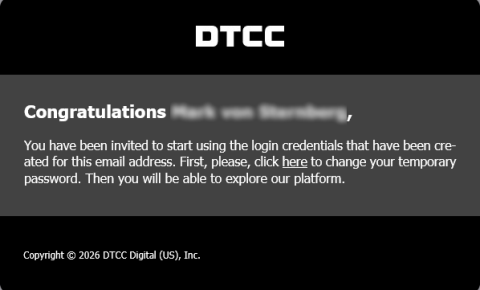
After you select the applicable role(s), click Add Member. The new member displays on the Members tab. The new member will receive an email from [email protected] with instructions for accessing the application. If the new member does not receive the email in their inbox, they should check their junk or spam folder.
Note: Adding a member to the Members team allows that user to authenticate and access the participant's business context. When a user is removed from the Members team, they no longer have access to that business context.
|
|
Important |
|
Only members who have not previously had an account associated with the same email address in the system will receive an email notification.
|