DTCC Tokenization Service: Onboarding and Getting Started
This topic contains links to onboarding resources, application login URLs, and instructions for getting started.
These onboarding resources are available on the DTCC Learning Center. You must log in to access this content:
- Onboarding Checklist and Process Flow : This pdf provides a participant onboarding journey workflow and a checklist.
- Client Readiness Checklist (Canton and Besu) : This resource provides a client self-assessment checklist to help organizations evaluate their readiness to onboard to and participate in DTCC's Tokenization Service.
- Wallet Solution Provider Connectivity Guide: The document is a detailed connectivity guide for Wallet Solution Providers interfacing with the DTCC Tokenization Service.
Homepage and Logging On
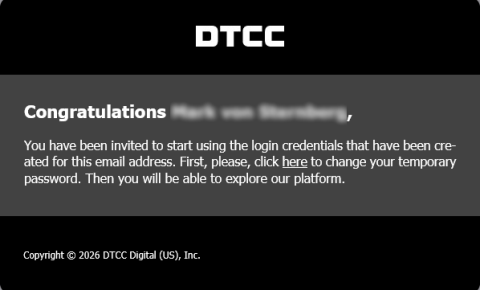
After your Super Access Coordinator (SAC) completes your onboarding, you will receive an email from [email protected] with instructions for accessing the application. If you do not receive the email, check your junk or spam folder.
|
|
Note |
The following are the application URLs: |
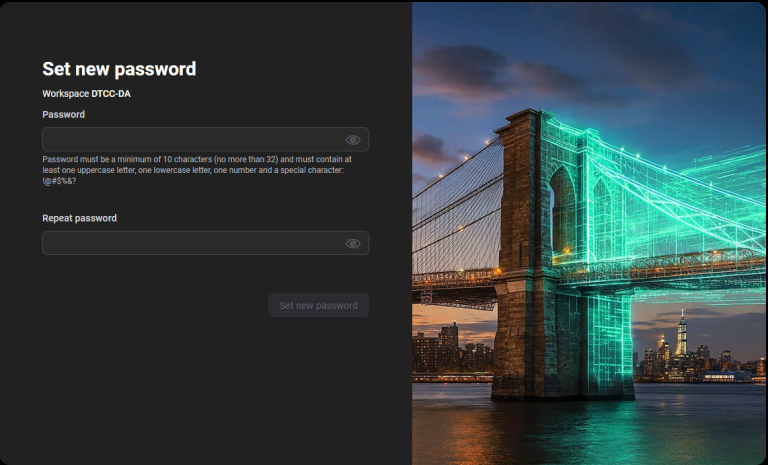
From the set new password screen, create your password. Click on Set new password.
Note: Passwords must be a minimum of 10 characters (no more than 32) and must contain at least one uppercase letter, one lowercase letter, one number and a special character: !@#$%&?
|
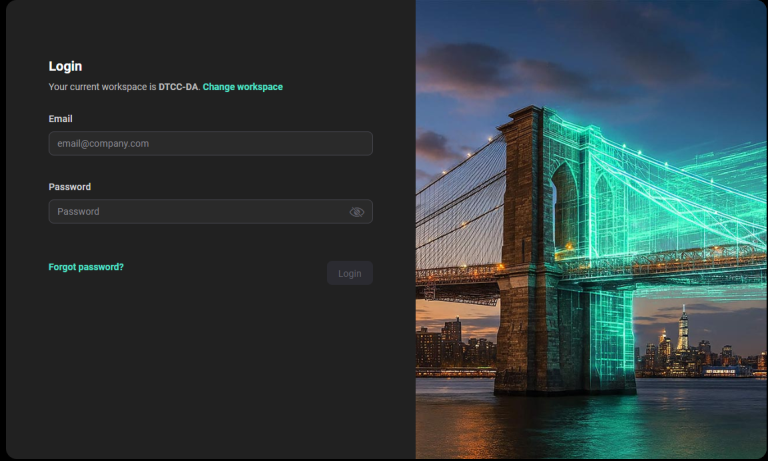
After resetting your password, you will be directed to the login screen. Enter your email address and password, and then click Login.
|
From the home screen, use the navigation menu on the left to access the application screens.

|
|
Important |
|
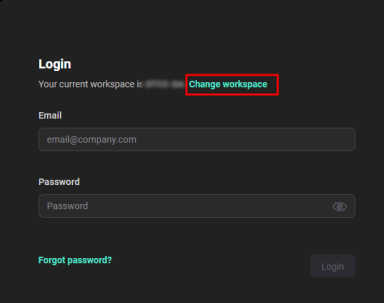
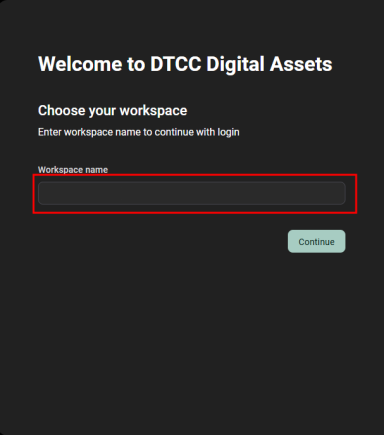
If the onboarding user closes the browser window after changing their password, the system does not save the workspace information on the user’s device. If the user later attempts to log in using the application URL, they will be prompted to enter their workspace name because the tenant cookie was not saved during onboarding. The user must then obtain the workspace name from their SAC. Once the user has obtained the correct workspace name:
Note: Users must also enter their workspace name if their saved cookie has expired or if they need to change the workspace name configured during their initial setup. |