Tokenization Service: Account Screen
The Account screen displays the structure of your associated accounts. DTCC Participants are granted access to the Tokenization UI through the onboarding process. Once access is enabled, use this screen to:
- Manage your Classic and Digital (Client and Internal) accounts.
- View account activity including transfers, transfer types, and the associated securities and quantities.
- View the balance for each account and its record for each security position in the L1 network.
The Account screen is located within the Analytics section of the left-hand navigation.
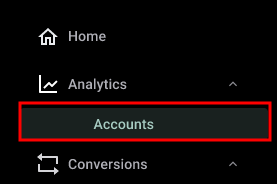
Account Structure
The Tokenization Service automatically creates two accounts—or account buckets—for participants. These accounts are listed in the Structure tab.
- The Classic Account represents the traditional DTC participant account.
- The Digital Account represents accounts associated with blockchain-based wallets.
There are two sub-accounts within the Digital Account:
- Client Accounts contain client-specific sub-ledger wallets for participants acting as custodians, primer brokers, or other roles for their own clients where they are tracking their books and ledgers.
- Internal Accounts are Participant-owned wallets that contain wallets established by participants based on their organizational needs.
Key Concept
- Digital accounts are essentially containers, or “buckets,” that participants can use to organize their digital assets according to their preferences. This flexibility enables the movement of assets between wallets based on organizational requirements or specific tokenization use cases.
- All new digital accounts are created through the Register Wallets screen.
To view an account's structure or its Classic and Digital wallets, click on the account name.
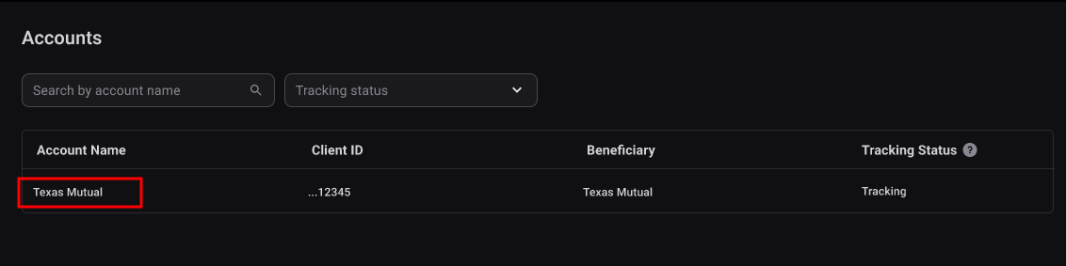
|
The account view displays two tabs: Accounts and Activities.
Accounts tab
The Accounts tab displays the wallets available within an account, specifically the Classic and Digital buckets.
To view the wallets within your Classic or Digital accounts, click the appropriate link.
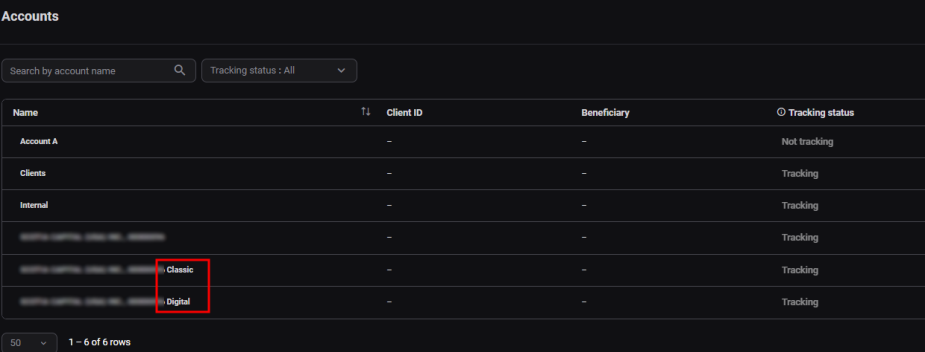
Within Digital accounts, you can drill down further to view Internal and Client wallets.
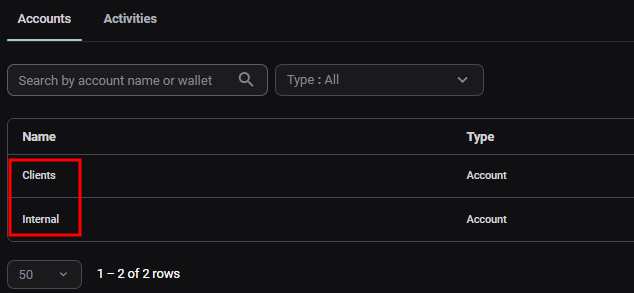
You can switch to the Activity tab for any wallet to view its transactions.
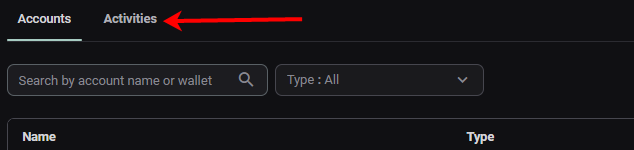
Activities Tab
The Activities tab displays all activities (transactions) associated with the selected account or wallet.
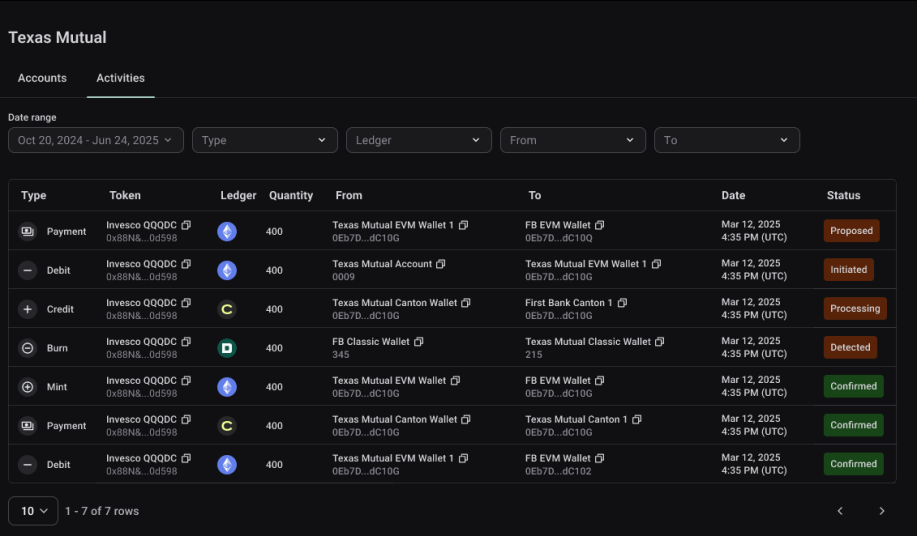
The following table describes the columns displayed in the Activities tab:
| Field | Description |
|---|---|
| Type |
The process type of transaction, for example, Payment Received, Payment, Mint, and Burn. |
| Token | The Security associated with the transaction. |
| CUSIP | The CUSIP associated with the security. |
| Ledger |
The ledger associated with the transaction. Note: This field is denoted by the ledger’s associated blockchain icon.
|
| Quantity | The quantity of tokens, or shares, associated with the transaction. Note: each token represents a share and the platform does not allow fractional tokens. |
| Participant From | The participant sending the tokens in the transaction. |
| Participant To | The participant receiving the tokens in the transaction. |
| Date | The timestamp of the most recent status update for the transaction. |
| Status |
The status of the transaction, specifically, whether or not it is Confirmed. |
 icon refers to the
  icon refers to
  icon refers to DTCC's offchain ledger that is tied to the participant's DTC account.