| Apply |
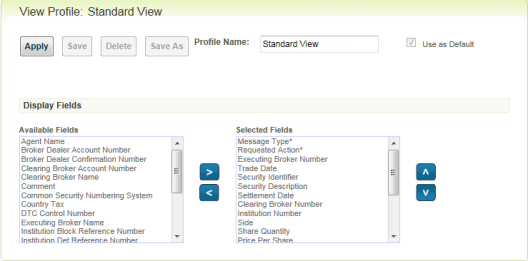
Apply the current profile and return to the main trade blotter page with the displayed view profile used. You can also use this button to apply a view profile to the trade blotter after making changes to it.
- For an existing view profile, save these changes by clicking Save. Next, apply the updated view profile by clicking Apply. This updated view profile is used to display data in the trade blotter.
- For a new view profile, save the changes by clicking Save As. Next, apply the new view profile by clicking Apply. This new view profile is used to display data in the trade blotter.
If you make updates to a view profile without clicking Save or Save As, the TradeSuite ID service applies the changes as an ad hoc profile.
When the page refreshes, Ad hoc displays as the view profile name.
|
| Save |
Save the settings when you modify a user-defined view profile. |
| Delete |
Delete a user-defined view profile. If you designated the deleted profile as the “use as default” view profile, the Standard View profile becomes the “use as default” view profile.
You cannot delete the Standard View profile; therefore, this button is unavailable for this predefined view profile.
|
| Save As |
Name a new view profile or change the name of a current view profile setting. Save As becomes available when you type one or more valid characters in the Profile Name field. |

|
Move one or more selected fields from the Available Fields list to the Selected Fields list. Moved fields appear beneath any previously selected fields in the list. To select more than one field at a time, hold down the Ctrl key while you make your selections. |

|
Move one or more selected fields from the Selected Fields list to the Available Fields list. Moved fields appear on the list in alphabetical order. To select more than one field at a time, hold down the Ctrl key while you make your selections.
|

|
Move one or more fields in the Selected Fields list up one position. To select more than one field at a time, hold down the Ctrl key while you make your selections.
|

|
Move one or more fields in the Selected Fields list down one position. To select more than one field at a time, hold down the Ctrl key while you make your selections.
|