
TradeSuite ID® Confirm/Affirm Product Help
Accessing Confirm/Affirm
The modules of the web application for the TradeSuite ID® service support the latest versions of both Microsoft® Internet Explorer and Google Chrome. To ensure that the TradeSuite ID web application modules function correctly, upgrade to the latest versions.
To access the TradeSuite ID service, MyDTCC is the preferred method of access given its enhanced user benefits and security. The Learning Center Access Product Services page can be an alternative method to access.
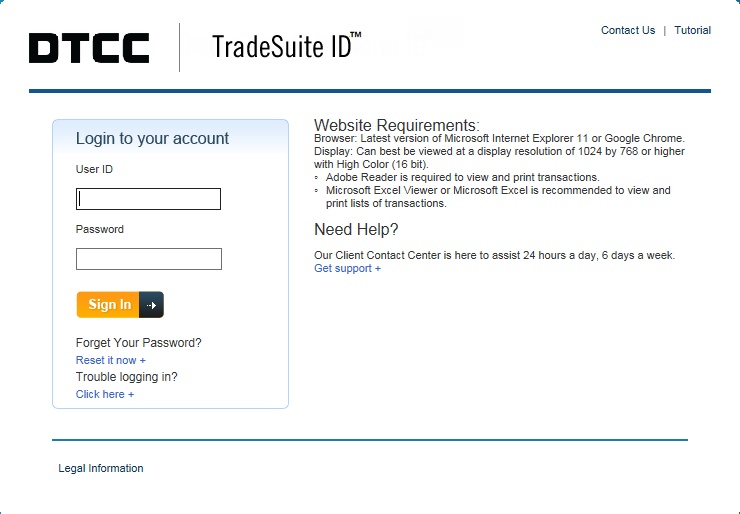
For your initial access, use the temporary password that you receive from your Product Administrator. After using one of the URLs to access the TradeSuite ID service, type your user name and password in the corresponding fields, as illustrated in the next figure.
|
If you are having trouble logging in to your account, choose Click here to access the troubleshooting page. If you forget your password, you can reset it by clicking Reset it now. Type your email address, and then click Next.
If your email address corresponds to an existing user account, you receive an email with password reset instructions. If you do not receive the email or have issues resetting your password, visit the Client Center.
Password Details
Complexity Rules
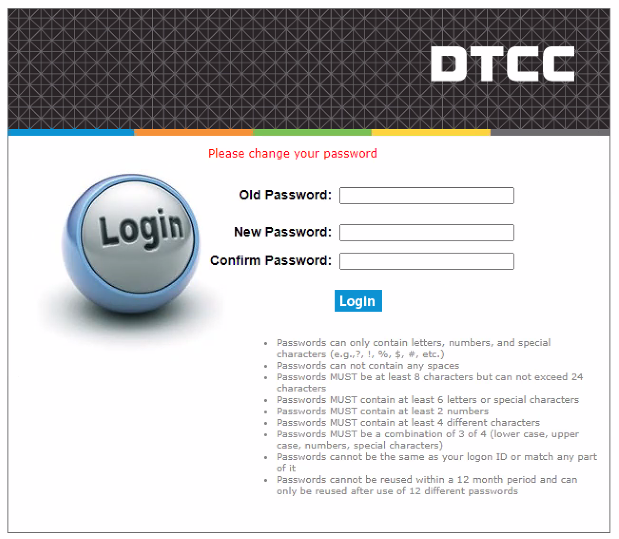
Users are prompted with the following password complexity rules when creating a new password.
|
- Passwords can only contain letters, numbers, and special characters (e.g., %, $, #, etc.)
- Passwords cannot contain any spaces
- Passwords MUST be at least 8 characters but cannot exceed 24 characters
- Passwords MUST contain at least 6 letters or special characters
- Passwords MUST contain at least 2 numbers
- Passwords MUST contain at least 4 different characters
- Passwords MUST be a combination of 3 of 4 (lower case, upper case, numbers, special characters)
- Passwords cannot be the same as your logon ID or match any part of it
- Passwords cannot be reused within a 12-month period and can only be reused after use of 12 different passwords
Usage Rules
- Passwords expire every 90 days. Users will be prompted to change their password at the time of login.
- After three invalid attempts at entering the correct password, IDs will be locked.