TradeSuite ID BTI Import Confirms
Authorized users can send confirms using a Confirm Import profile. The predefined import profile, Confirm Import, contains default import fields. You can use this profile to create your own import profiles.
In the BTI Import Profile, you can add up to a total of six user-defined BTI import profiles. For example, you can create three confirm import profiles and three cancel import profiles. If you attempt to add more than six user-defined import profiles, you receive an error message.
Use a Microsoft Excel file to list the details of the confirm. The field order that you specify in the Import profile must be an exact match to the Microsoft Excel spreadsheet that you are importing.
| Notes |
|
To import confirms,
- Select a confirm import profile from the BTI Import Profiles list.
Figure 4 Confirm Import 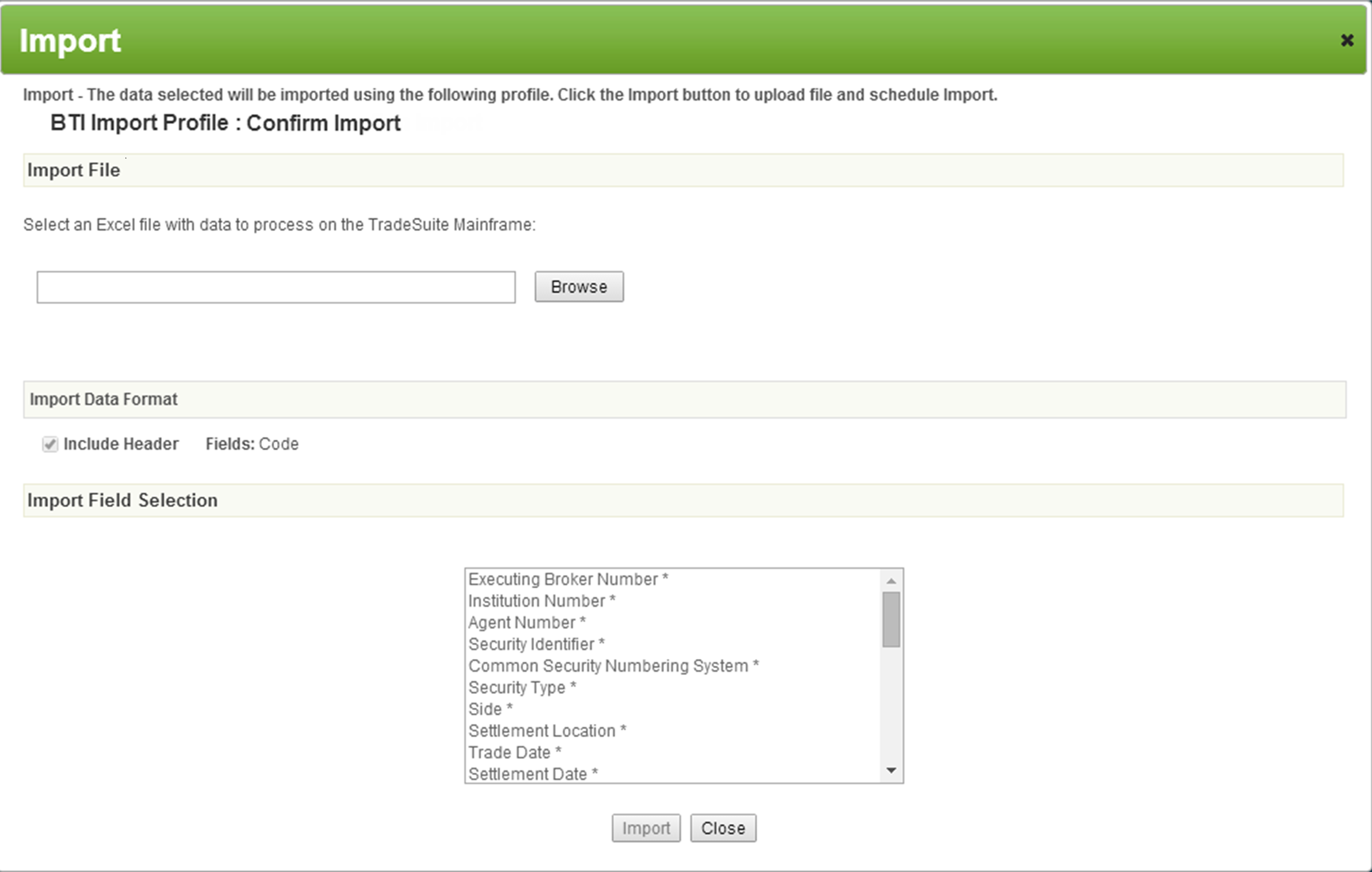
- To select a Microsoft Excel file containing the data that you want to process, click Browse.
Notes - The TradeSuite ID® service supports Microsoft Excel version 2003 and 2010. All other Microsoft Excel file versions are unsupported.
- Make sure the Microsoft Excel file contains the necessary fields and the Broker Dealer Confirm Number is unique.
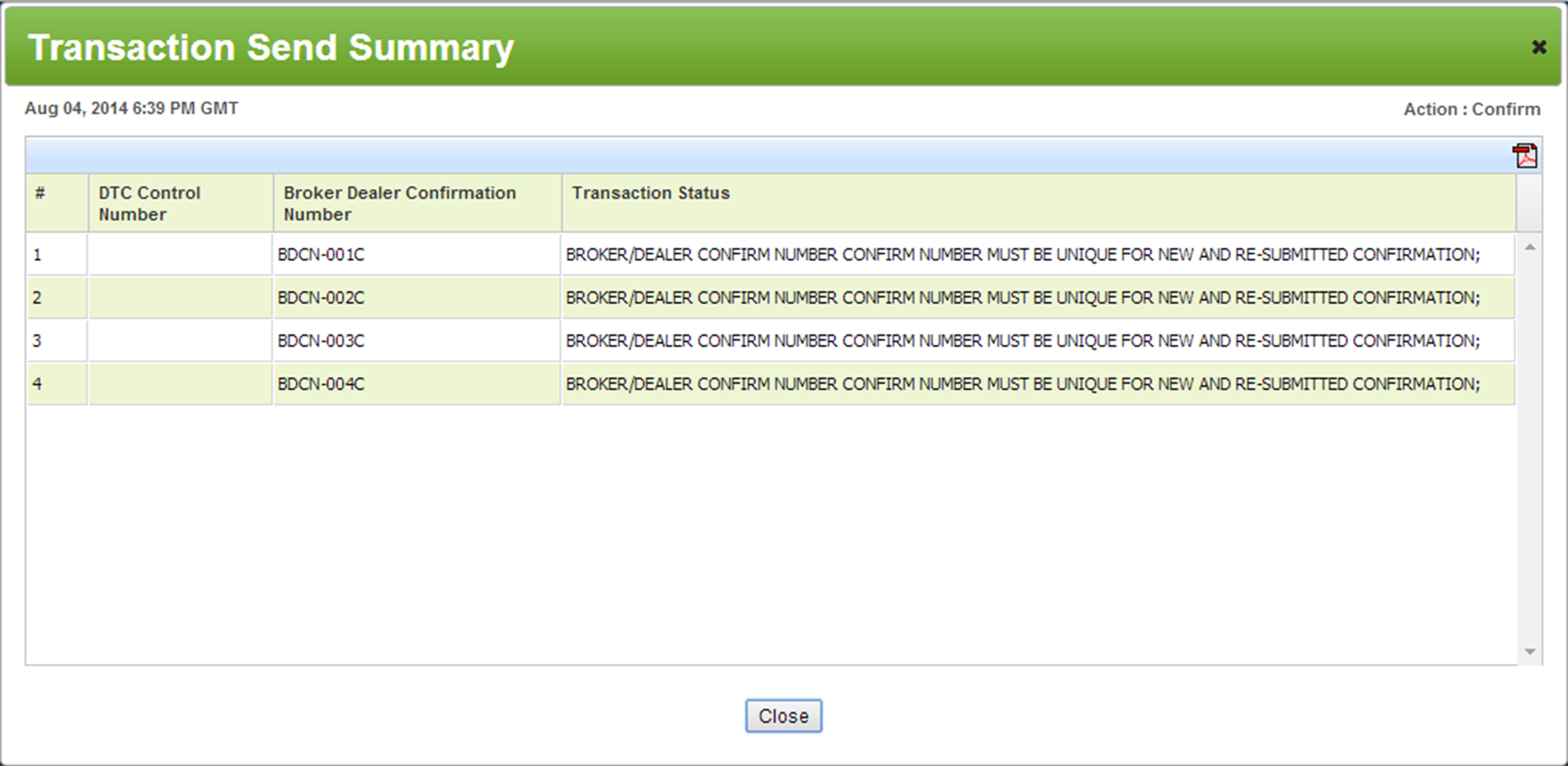
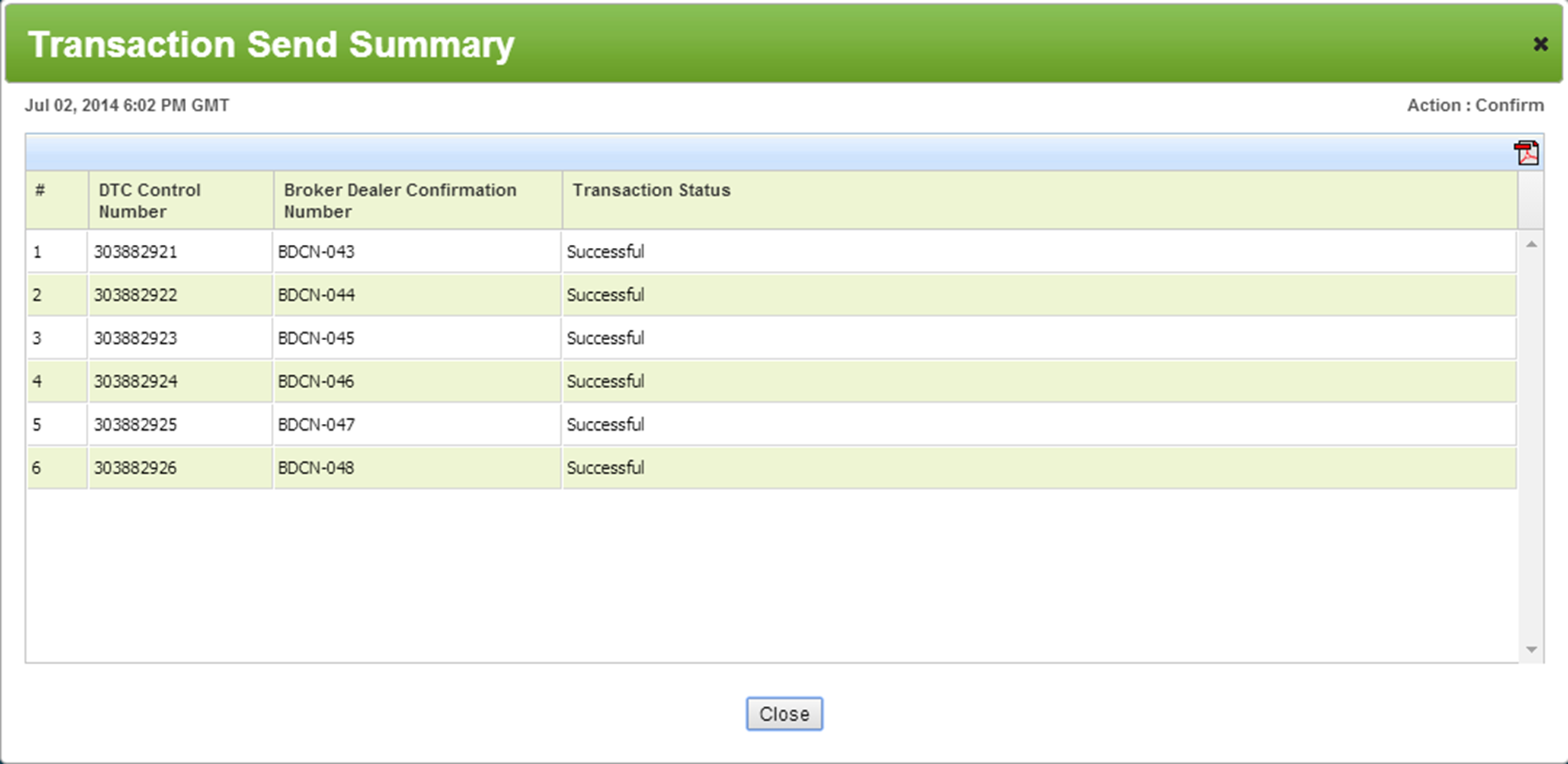
- Click Import.
- Optionally, to open or save the transaction file to your computer, click PDF
 icon.
icon. - To return to the main menu, click Close.
 button appears. Hover over the button to read the error message.