
inSITE: Editing a Document
The Edit functionality is available to the Broker Manager and Broker User (Maker) user roles. Use the Edit page to modify the optional data fields for the disclosure documents.
To edit a document:
- On Document Management window, select the document to be edited and click the Edit icon (
 ).
).
Note Edit Document functionality is in the Actions column on the data grid. You may have to use the left / right scroll bar to have access to the Actions column with the action items. 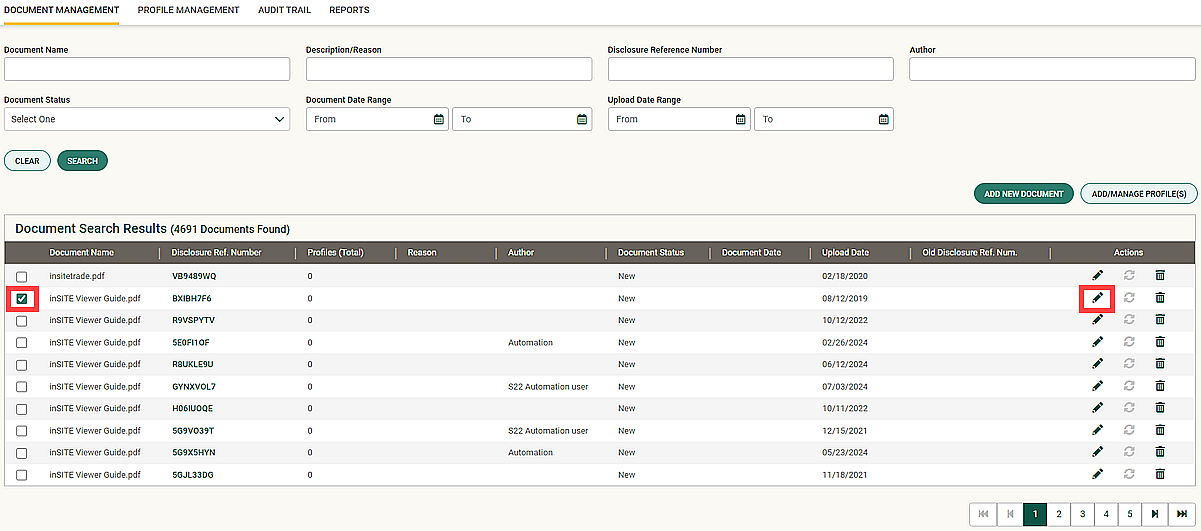
- The Edit Document pop-up window appears. Modify the document details as required using the three editable fields:
- Description/Reason
- Author
- Document Date
Note Any text that you enter in the Description/Reason field also appears on the view-only web site.
Click Update to save the changes. Clicking Cancelcloses the page without saving any changes.
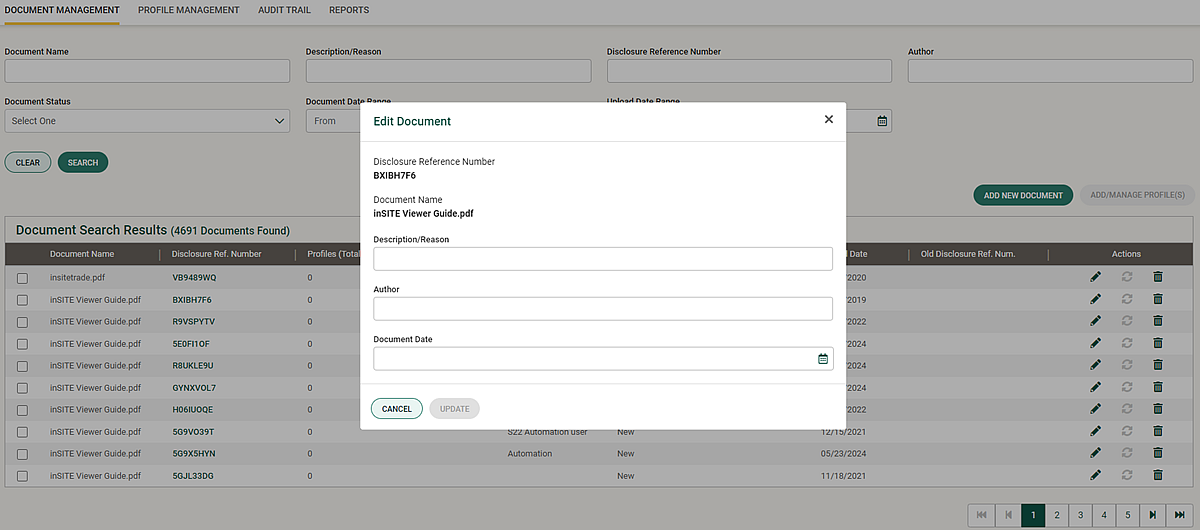
- Click Update Document to save the changes. Clicking Cancel Edit closes the page without saving any changes.
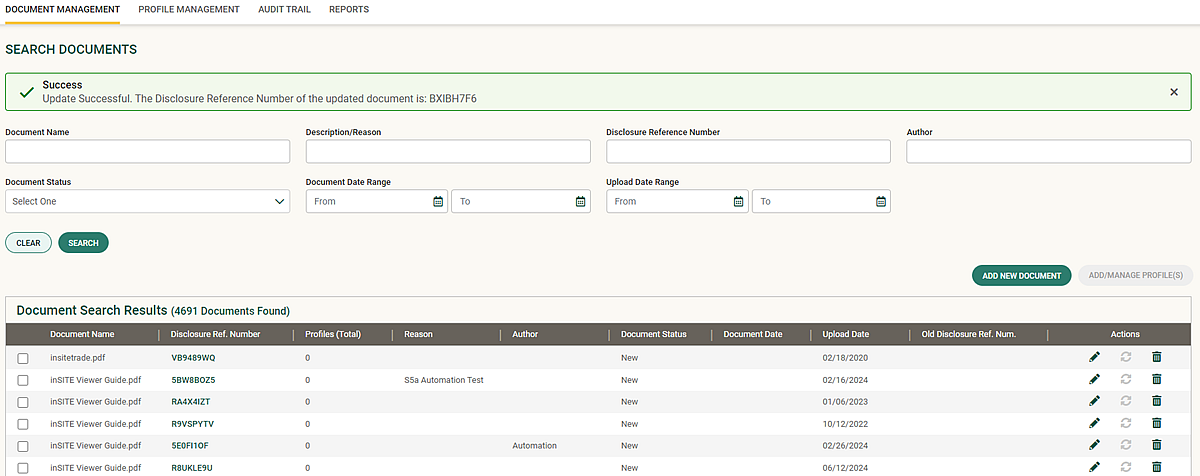
- The Success banner will display indicating that your update was successful for the document with assigned Disclosure Reference Number . The document information is added to the Active Disclosure Documents list. Once a document is uploaded and confirmed as correct, it cannot be removed from the site.
| Note |
| All document data (Description/Reason, Author, and Document Date) are not part of the approval process for Maker/Checker. If a Checker finds an issue with the document date, the Checker can reject the profiles with a note to the Maker to correct the document date. |