
View Standing Settlement Instructions
You can access My Side and Counterparty Standing Settlement Instructions (SSIs) from the Trade Side Details. Also, note the following:
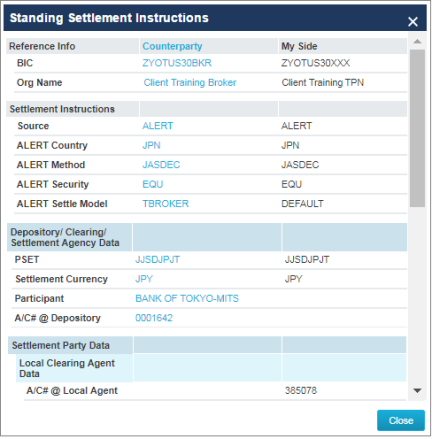
- The CTM service only returns populated SSI fields in the Standing Settlement Instructions screen.
- SSIs are only available to view on an allocation—not a block.
- There is one status in which you cannot view SSIs: NMAT Counterparty Trade.
To view SSIs:
- Open any view and double-click a block or allocation to open the Trade Side Details.
- Select the allocation containing the SSIs you want to view.
The figure below shows a portion of the Trade Side Details screen with the allocation selection and next step highlighted.
|
|

- Click View SSI.
The Standing Settlement Instructions screen appears (see below).
|
|
Dual SSIs
It is possible to provide both your own SSIs as well as your counterparty's SSIs on an allocation—also known as dual SSIs. If either side or both sides to the trade provide dual SSIs, the UI displays all four sets. To view dual SSIs, open the Trade Side Details for a trade, select a single allocation, and then click View SSI.
|
|
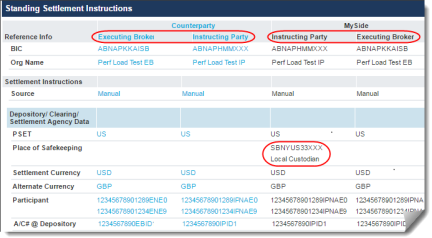
- The UI displays each trade party's SSIs for its own trade side and its counterparty trade side.
- The UI only displays SSI data in the row in which you or your counterparty provided data. For example, the highlighted Place of Safekeeping value was supplied only by the investment manager on its side of the trade.