DTCC Tokenization Service: Viewing, Adding, and Modifying Teams
|
Release Information |
|
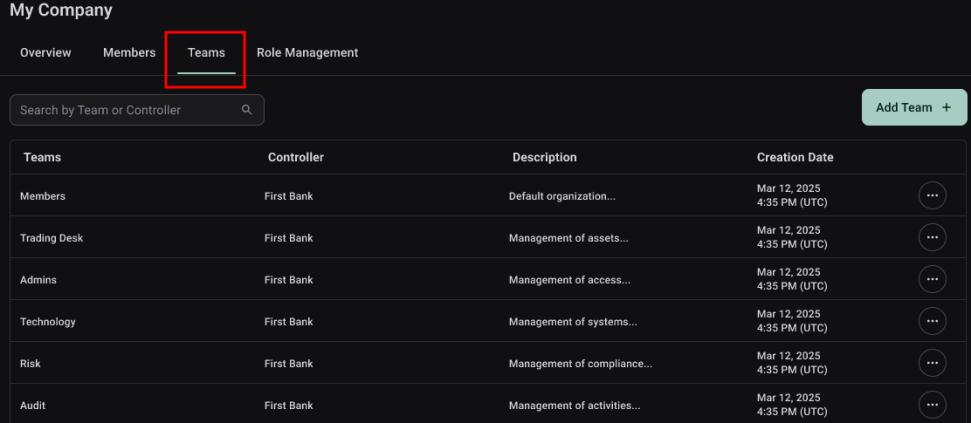
The Teams tab provides a list of all teams in your organization. During onboarding, your organization is set up with a default team that includes all of your entity's members: the Members team.
|
Important |
|
|
Creating and Managing Teams
You can create teams, delete or rename teams, add members, and grant permissions to teams.
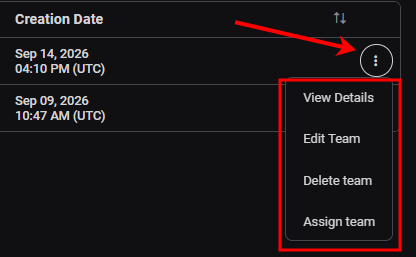
Click the vertical ellipses icon on the far right of the team you want to modify.
|
|
Key Concept |
| You can only add roles to a Team that you created. The default team that includes all of your members can only be renamed. |
The following options are available for created teams:
- View Details: View the team members. From this screen you can add new members to the team, edit their roles, or remove them.
- Edit Team: Edit the team name or its description. See Create a Team.
- Delete a Team: Delete the selected team Note: You cannot delete the default team created during your organization's onboarding.
- Assign a Team: Grants permissions to the members of the assigned team, based on their roles.
Create a New Team
To create a new team within your organization, click the Add Team button in the upper right of the Teams tab.
|
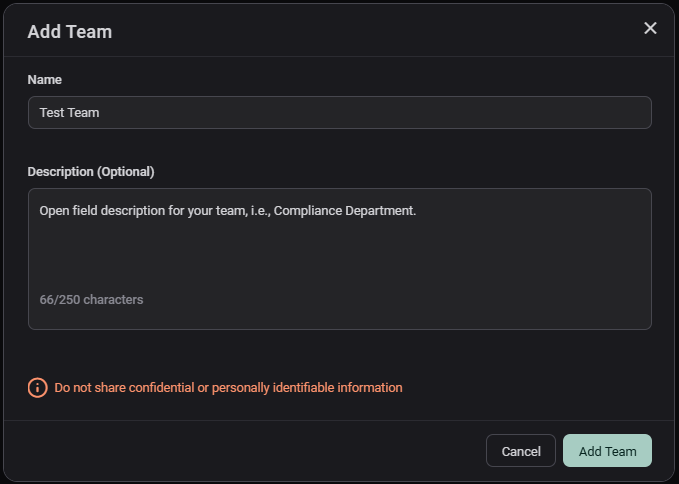
Enter the team name in the Name field. You can also add an optional description. Click on Add Team.
|
The new team displays on the Teams tab.