
Calendar: Overview
Overview
The MyDTCC calendar provides a centralized view of significant dates, events, and key business milestones.
|
|
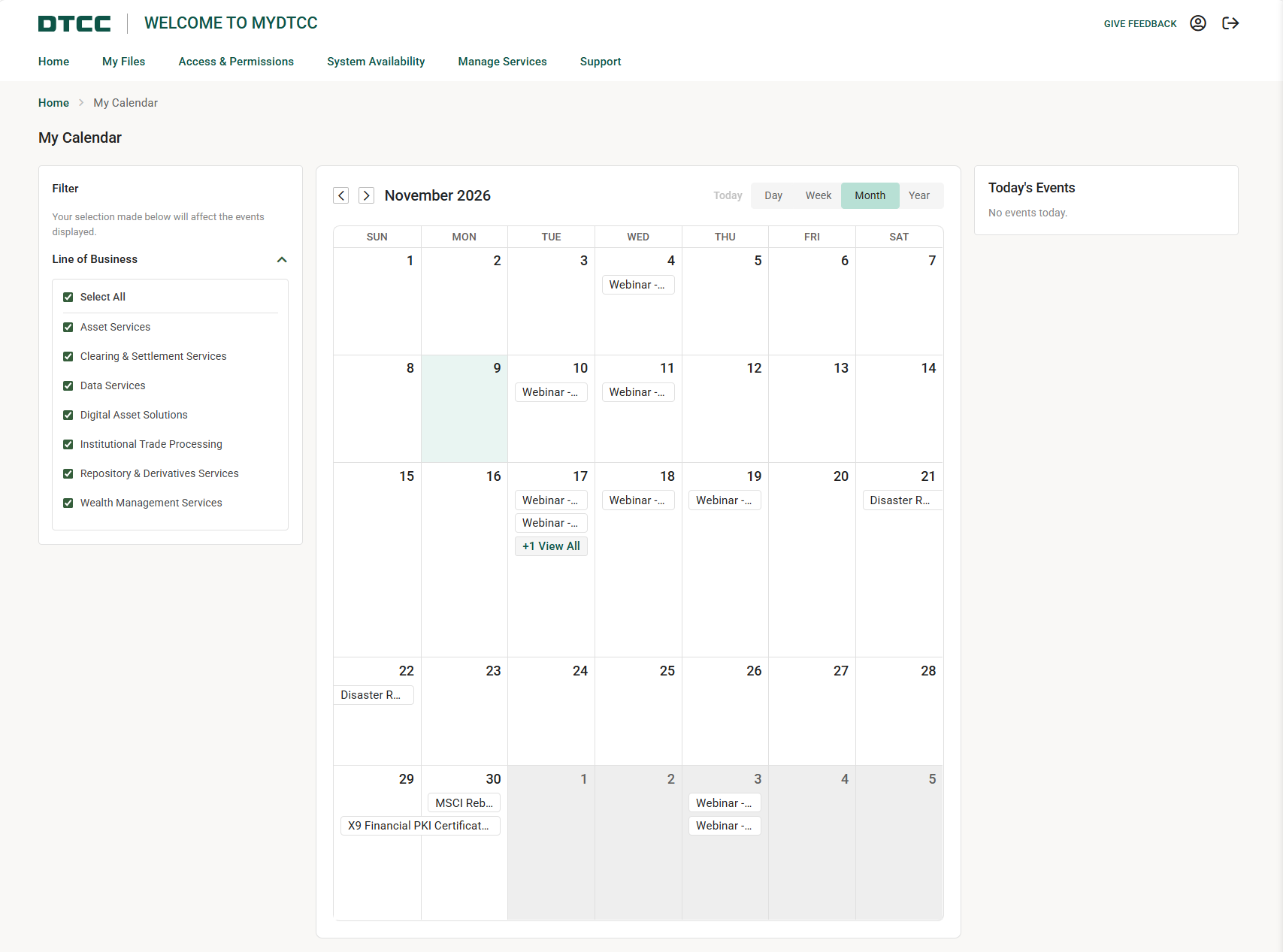
The MyDTCC calendar is designed to provide greater visibility into critical activities and consolidates information that was previously spread across emails, the Learning Center, and different applications. This helps you stay informed, plan proactively, and efficiently manage your business.
The MyDTCC calendar provides increased visibility into key events that may require planning or action on your part. These include maintenance windows, disaster recovery exercises, scheduled service outages, and important business deadlines.
As it evolves, the MyDTCC calendar will feature new event types. However, its initial focus is on delivering centralized visibility into critical operational events and milestones.
Upcoming Events
When you log in to MyDTCC, you see a preview of upcoming events on the Home Page. Events are organized by day, and may last one day or span multiple days.
This preview displays up to ten upcoming events. This allows you to stay informed without leaving the Home Page.
Select any upcoming event from the preview to view it. Once you select an event, you go directly to the corresponding date in the MyDTCC calendar, giving you access to any required additional details.
Viewing and Filtering Events
Select View All Events to access the full calendar and explore all scheduled events. Filtering options appear on the left side. These allow you to customize your calendar by business line to be the most relevant to your needs. All business lines are selected by default, but you can customize this view at any time. Your preferences are automatically saved and applied to all future calendar views.
The MyDTCC calendar opens in a monthly view by default. However, you can use the controls at the top of the screen to switch between Day, Week, Month, and Year views. Move backwards and forwards through the calendar up to one year in the past and one year in the future to view upcoming and historical calendar information.
Selecting Events
|
Note |
|
Events scheduled for the current day are always displayed in the calendar's right-hand panel. |
You will always see the current day's events displayed in the calendar's right-hand panel. When you select a future date, events for that day appear beneath the current day's events, giving you an easy point of comparison.
|
Note |
|
When you are viewing events with longer titles, hover over the title to view the full text using a tooltip. |
Select an event to open a detailed view containing the event title, date range, scheduled times, and full description. You can download the event details as a PDF file for future reference. From the MyDTCC Home Page, select an event in the Upcoming Events preview to navigate directly to the corresponding date in the calendar.