
CA Web: Searching for Custody Reorg or Reorg Deposits
You can search for allocated or unallocated reorg and custody reorg deposits.
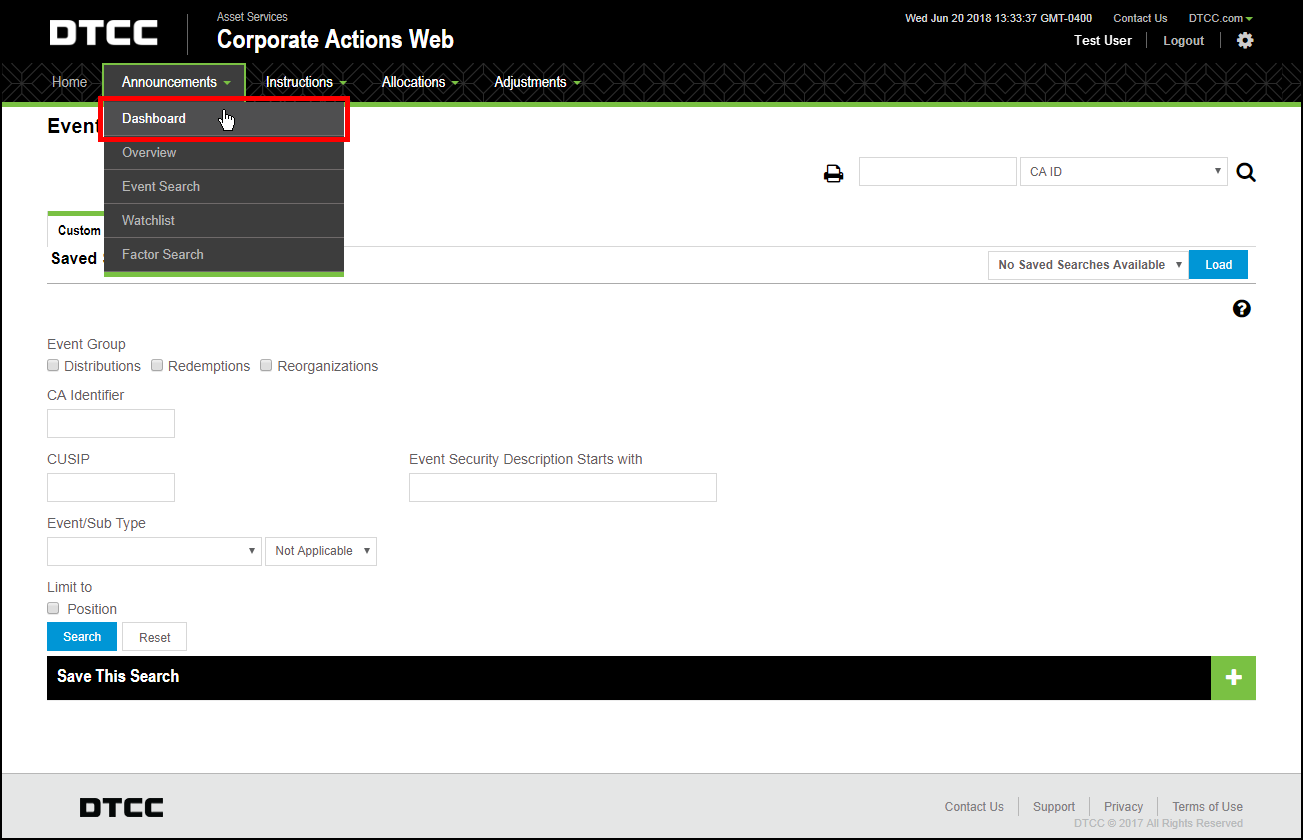
To reach this Search page from the menu bar:
- Click Announcements.
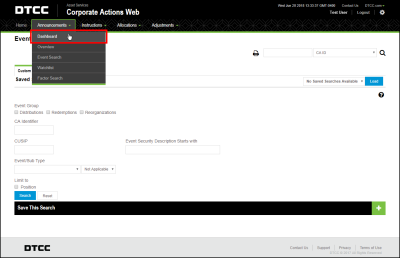
- Click Dashboard.
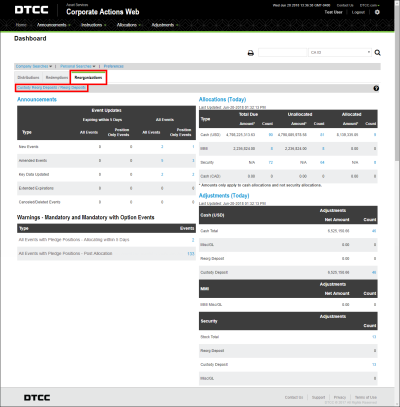
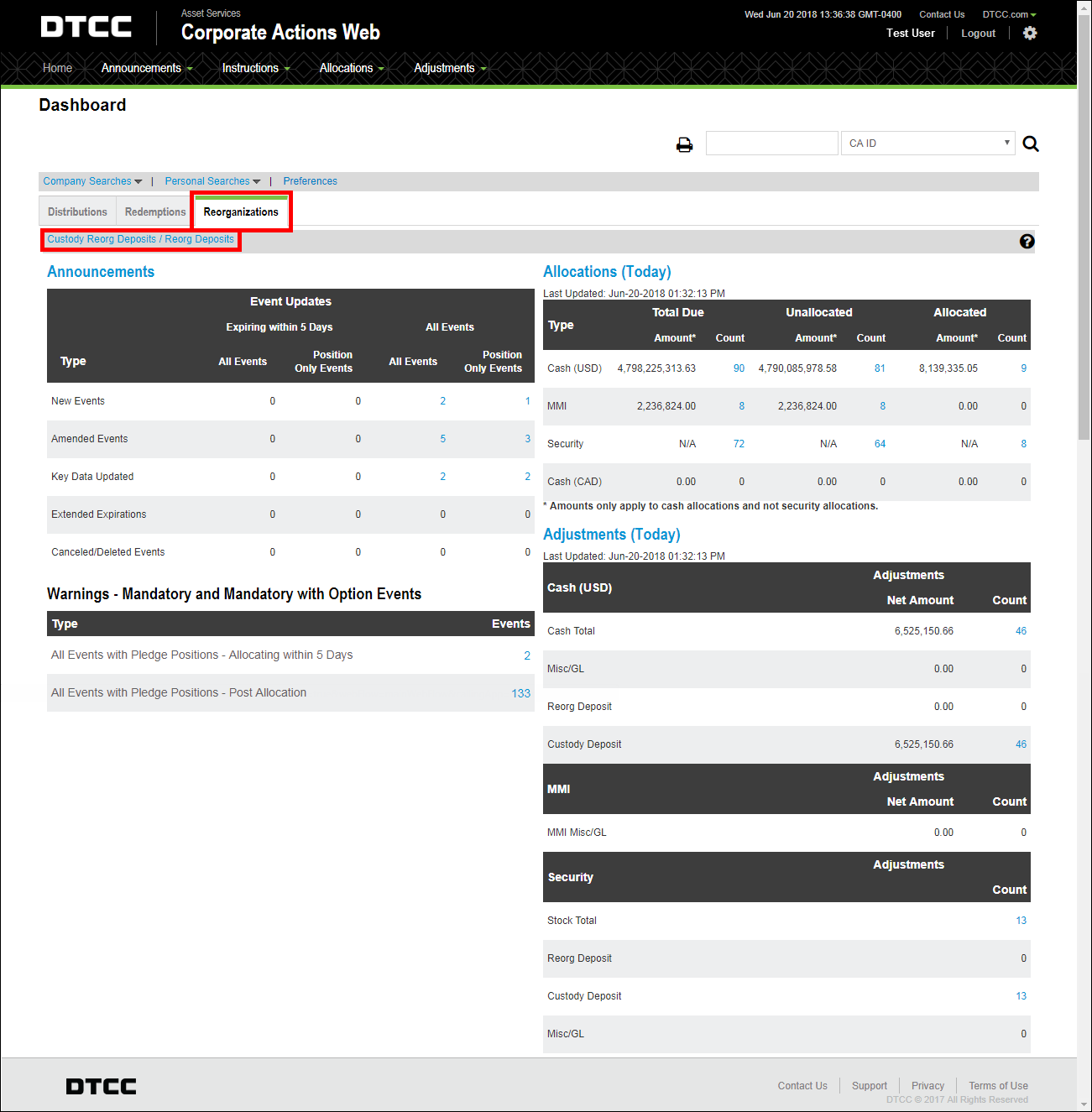
- Click the Reorganizations tab.
- Click Custody
Reorg Deposits / Reorg Deposits.
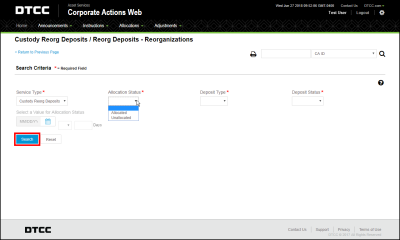
The Custody Reorg Deposits / Reorg Deposits search page appears.
-
Select your search criteria.
Service Type
Select the type of deposit to look for: either “Custody Reorg Deposits” or “Reorg Deposits.”
Allocation Status
Select “Allocated” for deposits that have already posted to your account. Select “Unallocated” for deposits that have not yet posted.
Deposit Type
These options depend upon the deposit type selected:
- Custody. Select to specify a regular Custody Reorg deposit.
- Over 3 Year. Select to specify Reorg deposits made 3 years or more after the primary allocation.
- Regular. Select to specify a regular Reorg deposit.
-
Restricted. Select to specify Custody Reorg deposits that may have transfer restrictions.
Deposit Status
- All. Select this option if you are looking for both in transfers and out transfers.
- In Transfer. Select to narrow your search to items for which the disbursed entitlements have not been received.
- Out Transfer. Select to narrow your search to items for which the disbursed entitlements have been received
Date
Use the calendar tool to select a start date for your search.
- To start your search at this date, select the “+” sign from the drop-down menu. Type the number of days your search should go forward from the start date.
-
To end your search at this date, select the “-“ sign from the drop-down menu. Type the number of days your search should go back from this date.
-
Click Search.
The results page appears for this search.
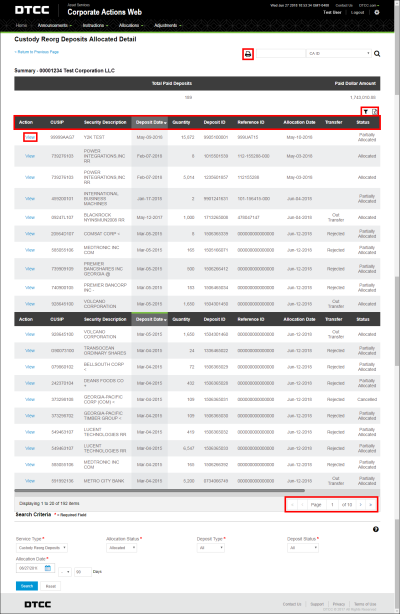


- You can sort these results by clicking on any of the column headings.
-
You can export these results to Excel by clicking the Export to Excel link. When you export your results to Excel, you will export all results – not just the ones that appear on the page.
- You can print these results by clicking on the Print icon. When you print your results, you will only print the results that appear on the page.
- Click Filter to refine the results by any applicable criteria.
-
Page through the results by entering a page number or clicking on the arrow buttons by the bottom right corner of the results grid.
- You can perform another search using the fields at the bottom of this page.
-
Click View to open a certificate detail window for any of the search results.
_thumb_0_48.png)
-
Click any of the black bars to view more information regarding certificate details, tracking, comments, or entitlements.
.png)